
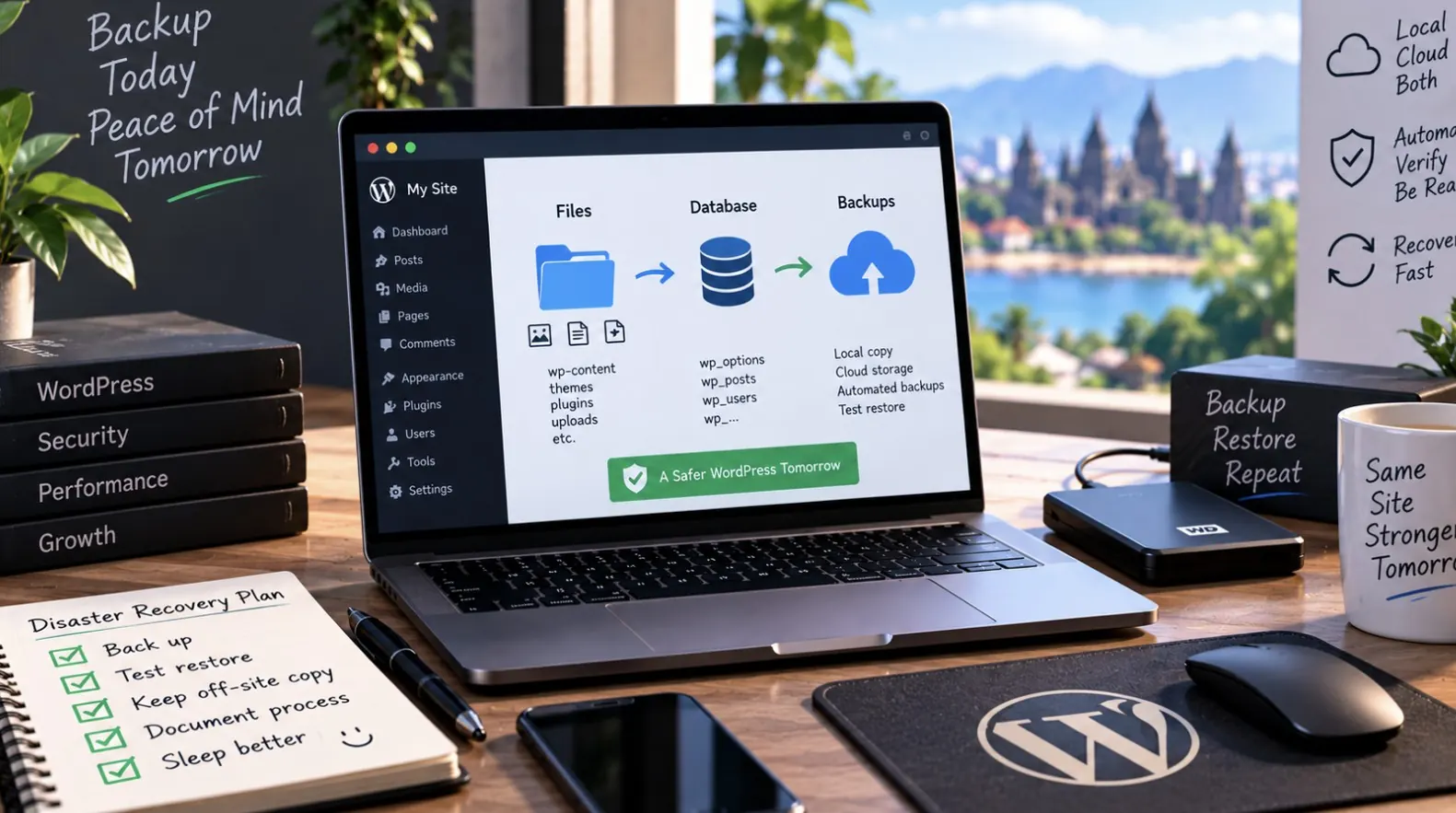
A WordPress backup that only covers the database, or only covers files, isn’t a backup — it’s half a recovery plan. If your host disappears, a plugin corrupts the database, or you get hacked, you need both pieces plus a tested way to restore them. Here’s a setup that actually works when it matters.
What you actually need to back up
- Database: posts, pages, comments, users, settings, plugin/theme configuration — all stored in MySQL/MariaDB.
- wp-content: uploads, themes, plugins, and any custom code. This is usually the largest and most irreplaceable part.
- wp-config.php: keys, salts, and DB credentials — keep this backed up separately and never in a public repo.
- .htaccess or nginx config: easy to forget, painful to lose.
A ready-to-use backup script
This dumps the database, archives the files, and keeps a rolling set of daily backups.
#!/bin/bash
set -euo pipefail

SITE_DIR="/var/www/example.com"
BACKUP_DIR="/var/backups/wordpress"
DATE=$(date +%Y-%m-%d_%H-%M)
DB_NAME="wp_example"
DB_USER="wp_backup_user"
DB_PASS="CHANGE_ME"
RETENTION_DAYS=14

mkdir -p "$BACKUP_DIR"

# 1. Dump the database
mysqldump --single-transaction --quick \
  -u "$DB_USER" -p"$DB_PASS" "$DB_NAME" \
  | gzip > "$BACKUP_DIR/db_$DATE.sql.gz"

# 2. Archive wp-content and config
tar -czf "$BACKUP_DIR/files_$DATE.tar.gz" \
  -C "$SITE_DIR" wp-content wp-config.php .htaccess

# 3. Rotate old backups
find "$BACKUP_DIR" -type f -mtime +"$RETENTION_DAYS" -delete

echo "Backup complete: $BACKUP_DIR/{db,files}_$DATE"
Schedule it with cron so it runs unattended every night:
crontab -e
# Run at 2:30am every day
30 2 * * * /usr/local/bin/wp-backup.sh >> /var/log/wp-backup.log 2>&1
Where backups should actually live
- Never only on the same server as the site — a compromised or dead server takes the backup with it.
- Push a copy off-site: S3, Backblaze B2, or another cloud storage bucket via `rclone` or `aws s3 cp`.
- Keep at least one backup that’s more than 30 days old, in case corruption goes unnoticed for a while.
The disaster recovery plan, not just the backup
- Write down the exact restore steps while everything is calm — not while the site is down and you’re panicking.
- Test a full restore on a staging environment at least once per quarter. An untested backup is a hope, not a plan.
- Know your recovery time: how long would it actually take to get the site back up from scratch?
Restoring from backup
# Restore database
gunzip -c db_2026-09-01_02-30.sql.gz | mysql -u wp_backup_user -p wp_example

# Restore files
tar -xzf files_2026-09-01_02-30.tar.gz -C /var/www/example.com
If you’re setting up the server itself from scratch, see deploy a PHP app on Ubuntu step by step for the underlying stack.
Quick FAQ
How often should I back up a WordPress site?
Daily for the database if the site has frequent content changes or e-commerce activity; weekly is often enough for mostly static sites, but always back up files after any plugin or theme update.
Are WordPress backup plugins enough on their own?
They’re convenient, but always confirm backups are also stored off-site and that you know how to restore without relying on the plugin’s UI, in case the site itself is down.
What’s the biggest mistake people make with WordPress backups?
Never testing the restore process. A backup you’ve never restored from is unverified and might silently fail when you need it most.
Leave a Reply